Showing posts with label VSphere. Show all posts

Thursday, 30 May 2013

ESXi 5.1 not detecting HBA adapter

Steps:

1) Make sure HBA is connected on the PCI slot and visible under esx hardware list:

esxcli hardware pci list

2) Check if VMKernel can detect any storage via Fibre Channel

esxcli storage san fc list
 
(output will be blank line if HBA driver is missing but HBA appears to be in PCI card determined from step 1)
esxcli storage core adapter rescan

3) Search and download the relevant ESXi drivers for HBA

the recommended driver (bfa) version for 82B in ESXi 5.1 is 3.0.0.0
You can download it from the following URL.
https://my.vmware.com/web/vmware/details?downloadGroup=DT-ESXi50-BROCADE-bfa-3000&productId=229


4) Download the driver and install it using following instructions:

New Installation
----------------

For new installs, you should perform the following steps:

    1. Copy the VIB to the ESX server.  Technically, you can
           place the file anywhere that is accessible to the ESX console shell,
           but for these instructions, we'll assume the location is in '/tmp'.

           Here's an example of using the Linux 'scp' utility to copy the file
           from a local system to an ESX server located at 10.10.10.10:
             scp VMware_bootbank_net-driver.1.1.0-1vmw.0.0.372183.vib root@10.10.10.10:/tmp

    2. Issue the following command (full path to the VIB must be specified):
              esxcli software vib install -v {VIBFILE}
      
           In the example above, this would be:
              esxcli software vib install -v /tmp/VMware_bootbank_net-driver.1.1.0-1vmw.0.0.372183.vib

Note: Depending on the certificate used to sign the VIB, you may need to
      change the host acceptance level.  To do this, use the following command:
        esxcli software acceptance set --level=<level>
      Also, depending on the type of VIB being installed, you may have to put
      ESX into maintenance mode.  This can be done through the VI Client, or by
      adding the '--maintenance-mode' option to the above esxcli command.


Upgrade Installation
--------------------

The upgrade process is similar to a new install, except the command that should
be issued is the following:

    esxcli software vib upgrade -v {VIBFILE}


Tuesday, 28 May 2013

ESXi host 4.1 to 5.1 upgrade stuck on 22%


If your ESXi host update from v4.1 to 5.1 stalls, crashes or freezes on 22% don't panic wait for it to finish if no joy then next time don't forget to untick disable DPM box in the upgrade wizard, works for me every time.

When it happened first time, I remotely accessed the host and found esxi host frozen on loading screen (black & yellow) on Power management services.


Monday, 20 May 2013

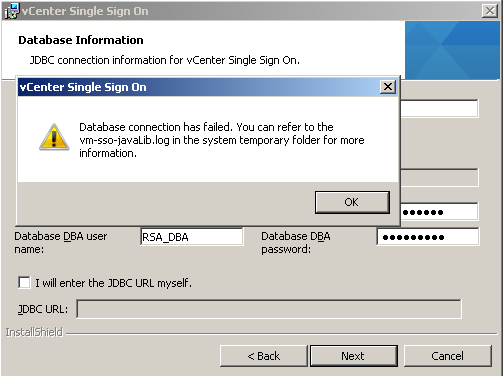
vCentre Single Sign On Database Connection has failed

When I came across this error
"Databse connection has failed. You can refer to the vm-sso-javaLib.log in the system temporary folder for more information" during the installation of vSphere 5.1 SSO.

I fixed it my changing MS SQL Database authentication from Windows to SQL and Windows mixed authentication.


Godd Luck!!

Tuesday, 7 May 2013

Power off unresponsive VM

Using the ESXi 5.x esxcli command to power off a virtual machine

The esxcli command can be used locally or remotely to power off a virtual machine running on ESXi 5.x. For more information, see the esxcli vm Commands section of the vSphere Command-Line Interface Reference.
  1. Open a console session where the esxcli tool is available, either in the ESXi Shell, the vSphere Management Assistant (vMA), or the location where the vSphere Command-Line Interface (vCLI) is installed.

  2. Get a list of running virtual machines, identified by World ID, UUID, Display Name, and path to the .vmx configuration file, using this command:

    esxcli vm process list

  3. Power off one of the virtual machines from the list using this command:

    esxcli vm process kill --type=[soft,hard,force] --world-id=WorldNumber

    Notes:
    Three power-off methods are available. Soft is the most graceful, hard performs an immediate shutdown, and force should be used as a last resort.
    Alternate power off command syntax is: esxcli vm process kill -t [soft,hard,force] -w WorldNumber

  4. Repeat Step 2 and validate that the virtual machine is no longer running.
For ESXi 4.1:
  1. Get a list of running virtual machines, identified by World ID, UUID, Display Name, and path to the .vmx configuration file, using this command:

    esxcli vms vm list

  2. Power off one of the virtual machines from the list using this command:

    esxcli vms vm kill --type=[soft,hard,force] --world-id=WorldNumber

Using the ESXi command-line utility vim-cmd to power off the virtual machine

  1. On the ESXi console, enter Tech Support mode and log in as root. For more information, see Tech Support Mode for Emergency Support (1003677).
  2. Get a list of all registered virtual machines, identified by their VMID, Display Name, and path to the .vmx configuration file, using this command:

    vim-cmd vmsvc/getallvms

  3. To get the current state of a virtual machine:

    vim-cmd vmsvc/power.getstate VMID

  4. Shutdown the virtual machine using the VMID found in Step 2 and run:

    vim-cmd vmsvc/power.shutdown VMID

    Note: If the virtual machine fails to shut down, use this command:

    vim-cmd vmsvc/power.off VMID


    http://kb.vmware.com/selfservice/microsites/search.do?language=en_US&cmd=displayKC&externalId=1014165

Tuesday, 30 April 2013

Configuring ISCSI port binding on vSphere using CLI


Configuring Port Binding on vSphere 5.0 Using CLI


Run the following commands from the vSphere 5.0 host CLI to bind the VMkernel network adapter to the  iSCSI adapter:

esxcli iscsi networkportal add --nic vmk0 --adapter vmhbaXX
esxcli iscsi networkportal add --nic vmk1 --adapter vmhbaXX


Where vmk0 and vmk1 are the VMkernel network adapters compatible with iSCSI port binding requirements.  You can get the list of VMkernel network adapters connected to  all vSwitches by using  the command   

esxcfg-vmknic –l


vmhbaXX  is the software iSCSI adapter vmhba ID. You can verify the binding details by using the  following command: 


esxcli iscsi networkportal list --adapter vmhbaXX.


Then rescan the software iSCSI adapter to verify that multiple paths are available for iSCSI LUNs.


Configuring Port Binding on vSphere 4.x Using CLI


To enable vmknic-based multipathing for software iSCSI, run the following CLI commands:

esxcli swiscsi nic add --nic vmk0 --adapter vmhbaXX
esxcli swiscsi nic add --nic vmk1 --adapter vmhbaXX


Where  vmk0 and  vmk1 are the VMkernel network adapters  compatible with iSCSI port binding requirements. You can get the list of VMkernel network  adapters connected to all vSwitches by using the command 

esxcfg-vmknic -l.


vmhbaXX is the software iSCSI adapter vmhba ID.  After configuring port binding, you can verify the binding details by using the following command: 


esxcli swiscsi nic list --adapter vmhbaXX. 


Then rescan the software iSCSI adapter to verify that multiple paths are available for iSCSI LUNs.


http://www.vmware.com/files/pdf/techpaper/vmware-multipathing-configuration-software-iSCSI-port-binding.pdf

Thursday, 24 January 2013

Error while running health check script


Error Message: Configuration Issues – HA agent on host in cluster clustername in datacentre has an error : Error while running health check script.


If you get this error message, follow these steps:
  • Unconfigure HA 
  • wait for it to finish
  • Reconfigure HA

ESXi Host Memory Swapping and Balloon not deflating - Solved

I came across an interesting problem where hypervisor's memory was ballooning although there wasn't a memory contention on the host. 


Problem:

Host has 32GB of RAM and provisioned RAM is 20GB, there was absolutely no reason for Memory swapping or Ballooning but when I did SSH and esxtop then 'm' for memory, you can see in the screenshot memory swapping is taking place:


This was confirmed from the VIClient Performance tab as well where 1.5GB  of hypervisor's memory was in used by Baloon drivers.
I've also added screenshot from VKernel vOPS


After going back to basis and checking esxtop again, I found that although MEMSZ  is 2048MB the GRANT memory is 449.11MB this tells me something is wrong with resource allocation.
On checking VM Properties, strangely there is a limit of 512MB on the memory  resources which is not visible in Summary and you can also see from the screenshot memory limit bar wasn't moved or adjusted to 512MB.


You can also run following command (change the VMNAME) to identify the memory size and maximum memory size

egrep "memsize|sched.mem.max" /vmfs/volumes/*/*/VMNAME.vmx | awk -F/ '{print $6}' | more


Solution:


If sched.mem.max is smaller than memsize, the balloon driver can start consuming memory (especially if the guest operating system application has periodic bursts of memory usage). However, this setting can cause the balloon driver to retain its hold on memory. If the guest operating system requires memory that is made unavailable by the balloon driver, the guest operating system starts using swap memory instead, which slows it down considerably.


To force the balloon driver to release its hold on memory and prevent the guest operating system from using swap space, use one of these options:

  • Set the value of sched.mem.max to the allocated memory or greater.
  • Select the virtual machine's Resources > Memory > Limit > Unlimited box.
  • Migrate the virtual machine to another host.


After completing the VMotion check the performace monitor and see memory release from the Balloon drivers and difference in VM performance and VM memory chart.


Possible Cause:


Migrating a virtual machine from ESX 2.x to 3.x or 4.x may cause a carry-over of memory reservation that is smaller than the virtual machine's allocated memory (likely a customer-specific setting).


Sunday, 20 January 2013

Consolidate Helper- 0


If you are using VSphere 4.x or higher and Veeam Backup & Replication v6 and getting random 'Consolidate Helper- 0' snapshot(s) in snapshot manager, as shown in the screenshot, it is time to upgrade to Veaam Backup & Replication version 6.5. For whatever reason you cannot upgrade to 6.5 or downgrade to 5 then create an alert in VIClietnt Alarms to notify VMs running on snapshot and delete the snapshot manually as soon as you get an alert.


Having couple or more of these Snapshot will massively deteriorate your VMs performance specially if this is on your File, SQL or Exchange server which require high disk read and write IOs. Also not to forget the disk space they consume which carry great risk of bringing your VM(s) to a complete halt and the time it takes to delete them to bring your VMs up and online.


Thursday, 10 January 2013

Common problems when Setting Up vCenter 5.1 Server Appliance

Configure Hostname, IP, Gateway, DNS and proxy for the appliance

login on the command line and run

/opt/vmware/share/vami/vami_config_net

Follow the menu to complete the steup
login console 

Unable to browse vCenter Server Appliance on Internet Explorer

 The first website to visit is the appliance web console accessible on https://vcsa-address:5480 as indicated in the console screen. IE6,7,8 was not able to open this website, but the latest Firefox 15 and IE9 had no issues when logging on with the default root password of vmware.
username: root  password: vmware