Showing posts with label VMWare. Show all posts

Tuesday, 7 May 2013

Power off unresponsive VM

Using the ESXi 5.x esxcli command to power off a virtual machine

The esxcli command can be used locally or remotely to power off a virtual machine running on ESXi 5.x. For more information, see the esxcli vm Commands section of the vSphere Command-Line Interface Reference.
  1. Open a console session where the esxcli tool is available, either in the ESXi Shell, the vSphere Management Assistant (vMA), or the location where the vSphere Command-Line Interface (vCLI) is installed.

  2. Get a list of running virtual machines, identified by World ID, UUID, Display Name, and path to the .vmx configuration file, using this command:

    esxcli vm process list

  3. Power off one of the virtual machines from the list using this command:

    esxcli vm process kill --type=[soft,hard,force] --world-id=WorldNumber

    Notes:
    Three power-off methods are available. Soft is the most graceful, hard performs an immediate shutdown, and force should be used as a last resort.
    Alternate power off command syntax is: esxcli vm process kill -t [soft,hard,force] -w WorldNumber

  4. Repeat Step 2 and validate that the virtual machine is no longer running.
For ESXi 4.1:
  1. Get a list of running virtual machines, identified by World ID, UUID, Display Name, and path to the .vmx configuration file, using this command:

    esxcli vms vm list

  2. Power off one of the virtual machines from the list using this command:

    esxcli vms vm kill --type=[soft,hard,force] --world-id=WorldNumber

Using the ESXi command-line utility vim-cmd to power off the virtual machine

  1. On the ESXi console, enter Tech Support mode and log in as root. For more information, see Tech Support Mode for Emergency Support (1003677).
  2. Get a list of all registered virtual machines, identified by their VMID, Display Name, and path to the .vmx configuration file, using this command:

    vim-cmd vmsvc/getallvms

  3. To get the current state of a virtual machine:

    vim-cmd vmsvc/power.getstate VMID

  4. Shutdown the virtual machine using the VMID found in Step 2 and run:

    vim-cmd vmsvc/power.shutdown VMID

    Note: If the virtual machine fails to shut down, use this command:

    vim-cmd vmsvc/power.off VMID


    http://kb.vmware.com/selfservice/microsites/search.do?language=en_US&cmd=displayKC&externalId=1014165

Wednesday, 1 May 2013

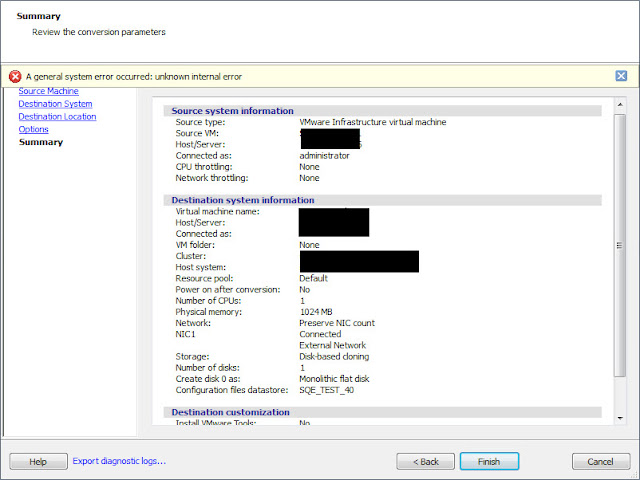
VMWare vConverter A General System error occurred: unknown internal error


If you come across following error whilst converting Physical machine to Virtual using VMware vCenter Converter Standalone version 5.x use following steps to overcome this message (i found these steps from different forums which seemed to have worked for some people but what worked for me is Step4).

A general system error occurred: unknown internal error.

1. Click Finish again to ignore and complete the P2V
2. From Server TCP/IP settings remove static IP addresses and set dynamic IP detection
3. (Source: VMware vConverter release notes) On ESX hosts earlier than 5.0 and managed by vCenter Server, you cannot submit conversion jobs if the name of the destination datastore contains non-ASCII characters
When you click Finish in the Conversion wizard, the following error message appears: A general system error occurred: unknown internal error. This issue is observed for VMware Infrastructure virtual machine destinations, when you connect to a destination vCenter Server and select a destination datastore that has non-ASCII characters in its name.
Workaround: Connect directly to the destination ESX host instead of the vCenter Server.

4. Download and complete the conversion using vConverter v4.3 (works every time).

Monday, 29 April 2013

Unable to find the system volume, reconfiguration is not possible, VMWARE P2V error

Applies to Windows Vista, 7, Server 2008, Server 2008 R2

To resolve this issue:
  1. Import the virtual machine to vCenter Server.
  2. Boot the virtual machine from the correct Microsoft Windows installation media (Correct architecture and version of the OS).
  3. Select the appropriate keyboard layout and language options and click Next.
  4. Click Repair your computer.
  5. Select the operating system to be repaired and click Next.
  6. Click the Command Prompt.
  7. Type bcdedit and press Enter.
  8. Under the Windows Boot Manager title with the identifier set to {bootmgr}, you may see that the device is set to bootSimilarly, under the Windows Boot Loader with the identifier set to {default}, you may see that the device and osdevice are set to boot. These items should be set properly for your environment. Usually these appear as partition=C:In some cases the {default} identifier may have them set to partition=D:.

    Run these commands to correct the configuration:

    Note: bcdedit is located in the following path, c:\windows\system32
    bcdedit /set {bootmgr} device partition=C:

    bcdedit /set {default} device partition=C:

    bcdedit /set {default} osdevice partition=C:
  9. Type exit at the command prompt and select Shutdown.
  10. Try to reconfigure using VMware converter. The reconfigure should now complete successfully. If it fails again, repeat Steps 1 to 7 and then run these commands to set the default device to partition=D::

    bcdedit /set {bootmgr} device partition=C:

    bcdedit /set {default} device partition=D:

    bcdedit /set {default} osdevice partition=D:

Sunday, 20 January 2013

Consolidate Helper- 0


If you are using VSphere 4.x or higher and Veeam Backup & Replication v6 and getting random 'Consolidate Helper- 0' snapshot(s) in snapshot manager, as shown in the screenshot, it is time to upgrade to Veaam Backup & Replication version 6.5. For whatever reason you cannot upgrade to 6.5 or downgrade to 5 then create an alert in VIClietnt Alarms to notify VMs running on snapshot and delete the snapshot manually as soon as you get an alert.


Having couple or more of these Snapshot will massively deteriorate your VMs performance specially if this is on your File, SQL or Exchange server which require high disk read and write IOs. Also not to forget the disk space they consume which carry great risk of bringing your VM(s) to a complete halt and the time it takes to delete them to bring your VMs up and online.


Thursday, 10 January 2013

Common problems when Setting Up vCenter 5.1 Server Appliance

Configure Hostname, IP, Gateway, DNS and proxy for the appliance

login on the command line and run

/opt/vmware/share/vami/vami_config_net

Follow the menu to complete the steup
login console 

Unable to browse vCenter Server Appliance on Internet Explorer

 The first website to visit is the appliance web console accessible on https://vcsa-address:5480 as indicated in the console screen. IE6,7,8 was not able to open this website, but the latest Firefox 15 and IE9 had no issues when logging on with the default root password of vmware.
username: root  password: vmware